
WINDOWS CLEANUP GUIDE
C drive full?
Review first. Delete second.
A large file is not automatically junk. Before clearing space, separate temporary clutter from the photos, projects, and game saves you want to keep.
THE QUICK CHECKLIST
Find the clutter without guessing.
Check what is taking space.
Start with Windows Settings → System → Storage. Look at the categories before choosing a cleanup tool. A drive full of installed games or personal videos needs a different decision from a drive full of caches.
Keep personal files out of the cleanup list.
Downloads, Desktop, Documents, Pictures, Music, Videos, cloud folders, and game saves are not a pile of disposable files. Review them yourself; do not delete them just because they are large or old.
Read each temporary-file category.
Use a review-first tool, not a blanket “select everything” approach. Caches may rebuild or download again after cleaning. Close the relevant app before cleaning its cache; do not force removal of locked files.
Clean your selection, then check the result.
Read the confirmation before removal. Keep the selection small when trying a tool for the first time. Compare available space afterward rather than treating a scan estimate as guaranteed reclaimed space.
THE BUILT-IN OPTION
You can start with Windows.
On Windows 11, Storage → Cleanup recommendations lets you review suggested items. Windows 10 also has Storage and Disk Cleanup. Inspect every category before removing anything, especially Downloads and the Recycle Bin. Removing a previous Windows installation removes that rollback option.
Storage Sense can run automatically. Check its rules first: Downloads and cloud-content settings need deliberate choices. Automatic cleanup is not a backup.
Microsoft guidance: Free up drive space · Storage Sense settings
IF YOU WANT A REVIEW-FIRST APP
Here is where SafeSweep fits.
I built SafeSweep around a visible selection: scan supported temporary and cache locations, see the categories and sizes, then choose what to clean. Standard cleanup is free. Personal folders are excluded from automatic cleanup.
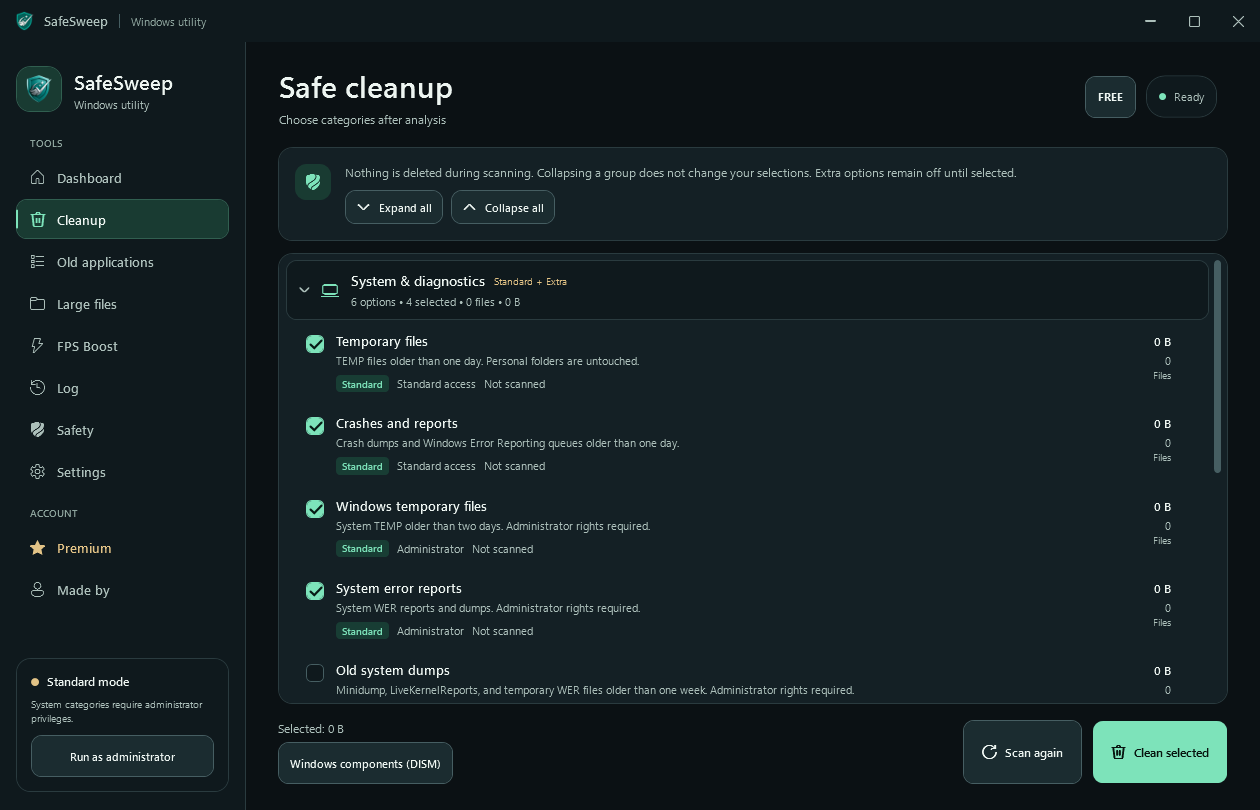
Scan → review → confirm
Nothing is deleted during scanning. Read the category descriptions, untick anything you want to keep, and confirm your selection.
Deeper tools, not a requirement
Extra CleanUp adds categories. Large Files is a read-only review tool: discovering a file does not delete it. You do not need Premium for Standard cleanup.
Windows 10/11 · 64-bit · No signup to download. The installer is currently unsigned; review Windows warnings and keep Windows Security enabled. This guide is written by the maker, not an independent review.
COMMON QUESTIONS
Know what cleanup can—and cannot—do.
Can I start without paying?
Yes. SafeSweep's Standard cleanup is free, and downloading it does not require a website account. Extra CleanUp, Large Files, Old Applications, and optimization are optional Premium tools.
Does a scan remove anything?
No. SafeSweep's cleanup scan reports categories, counts, and sizes. Review the selection and the confirmation before starting cleanup.
Can I undo cleaned files?
Do not treat cleanup as reversible. Restore All restores supported optimization settings, not deleted files. Keep backups of anything important.
Will cleanup give me more FPS?
Recovered disk space is not a guaranteed performance or FPS gain. The amount cleaned also depends on your PC; locked or changed files can reduce it.